Agency: work in a client's workspace
Switch between All clients and one client's workspace, share a shortlist of shows with a client, and see why some actions need a client chosen.
Transcript: A client's workspace in 15 seconds
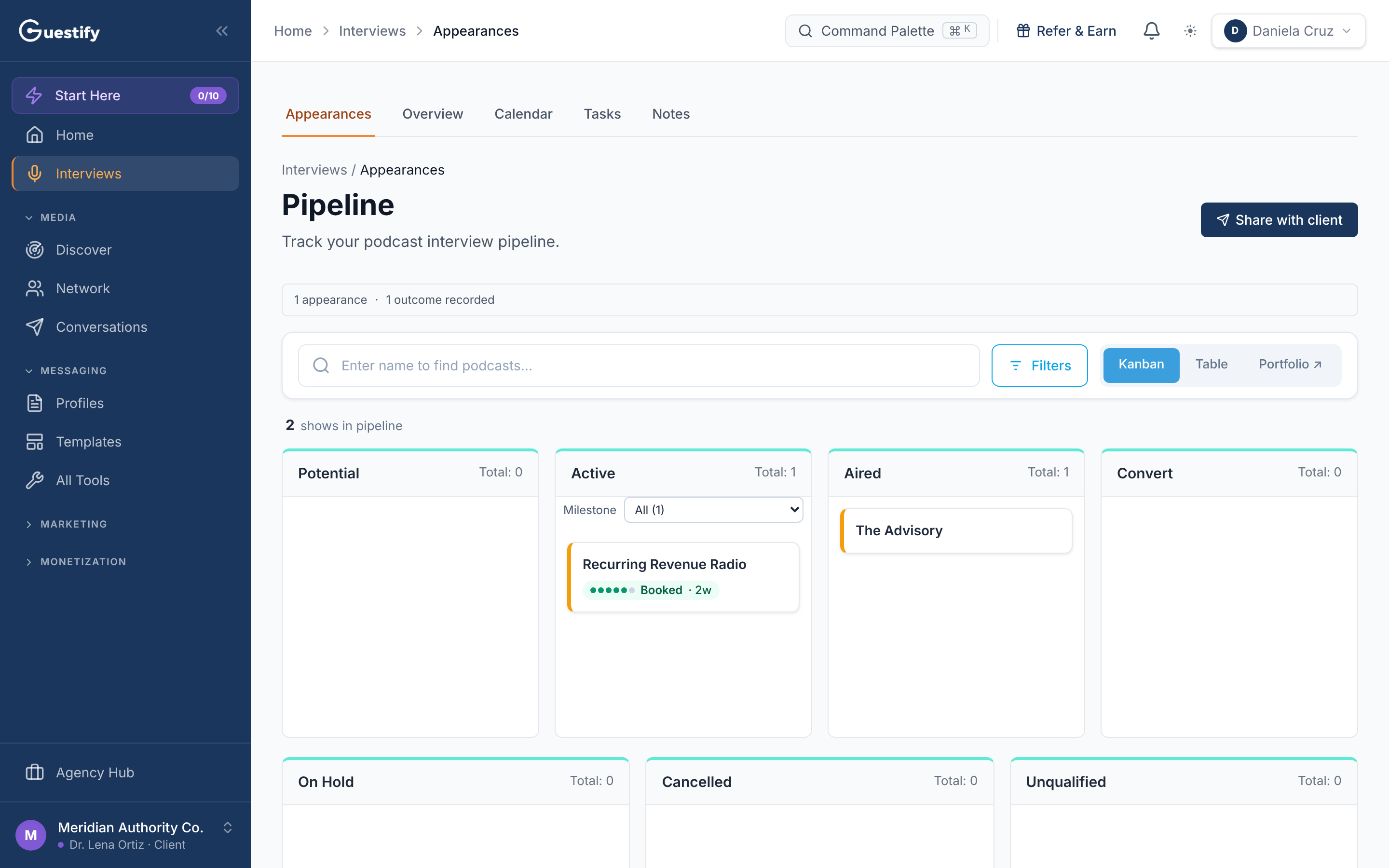
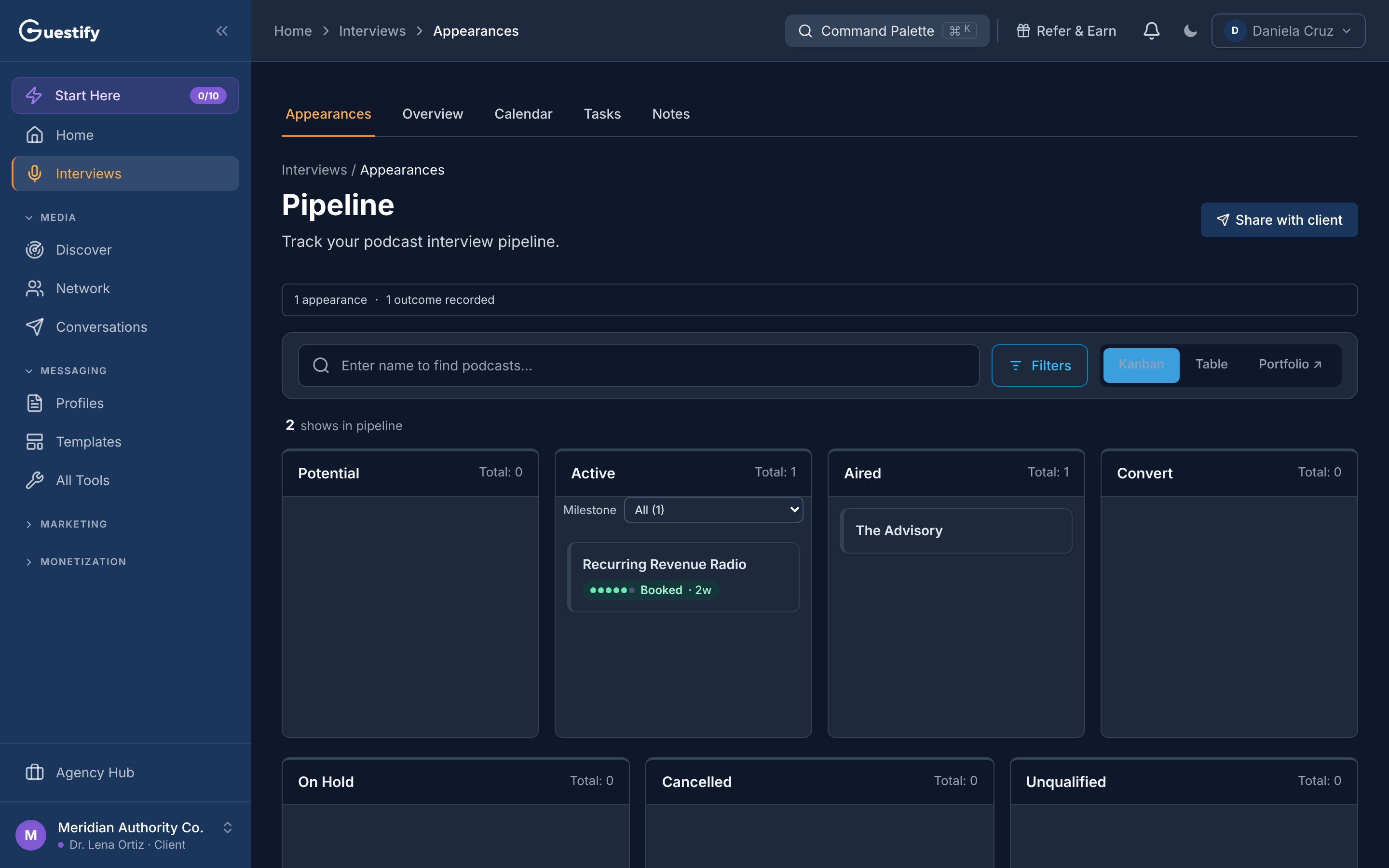
Choose a client from the workspace switcher at the bottom of the sidebar, and every page scopes to that client. Here is one client's appearances board. Share with client starts a share list you can send to them.
Switch workspaces
The workspace switcher is at the bottom of the sidebar. It shows your organization and either All clients or the client you're working in. Open it and choose All clients, or one of your active clients.
- All clients shows everything across your clients together.
- A client's workspace scopes every page to that client: their pipeline, media kits, campaigns, outcomes and reports.
Actions that need a client
Some actions create something that belongs to one client, so they need a client chosen first:
- Adding a show to a pipeline from Prospector.
- Starting a campaign ("Switch to a specific client to take this action").
- Creating a media kit: in All clients you're asked Who is this media kit for? first.
- Revealing contact details ("Choose a client before revealing contact details."). A reveal is bought for one client's workspace.
Share a shortlist with your client
Open Share with client
In the client's workspace, go to Interviews › Appearances and click Share with client. (It doesn't appear in All clients.)
Build the list
The list starts from the client's Potential shows. Give it a List title, a Note to client, and a note on any show.
Choose who can open it
Public link (token): anyone with the link can review it, for 30 days. Require client login: only the client's own portal login can open it.
Send it
Click Send to your client, or Send for team approval first. Preview as client shows what they'll see.
Your client marks each show Approve, Pass or Need more info, then sends their replies back to you. Approving a Potential show moves it to Active; passing moves it to Unqualified.
Team members and clients
Owners and admins see every client. In Settings › Workspace › Team Members, an owner or admin can limit an operator or read-only member to the clients they choose. That member then sees only those clients, including in All clients.