Manage your pipeline
Move shows through their statuses on the Appearances board, record why a show is unqualified, and open a show's full record.
Transcript: The Appearances board in 20 seconds
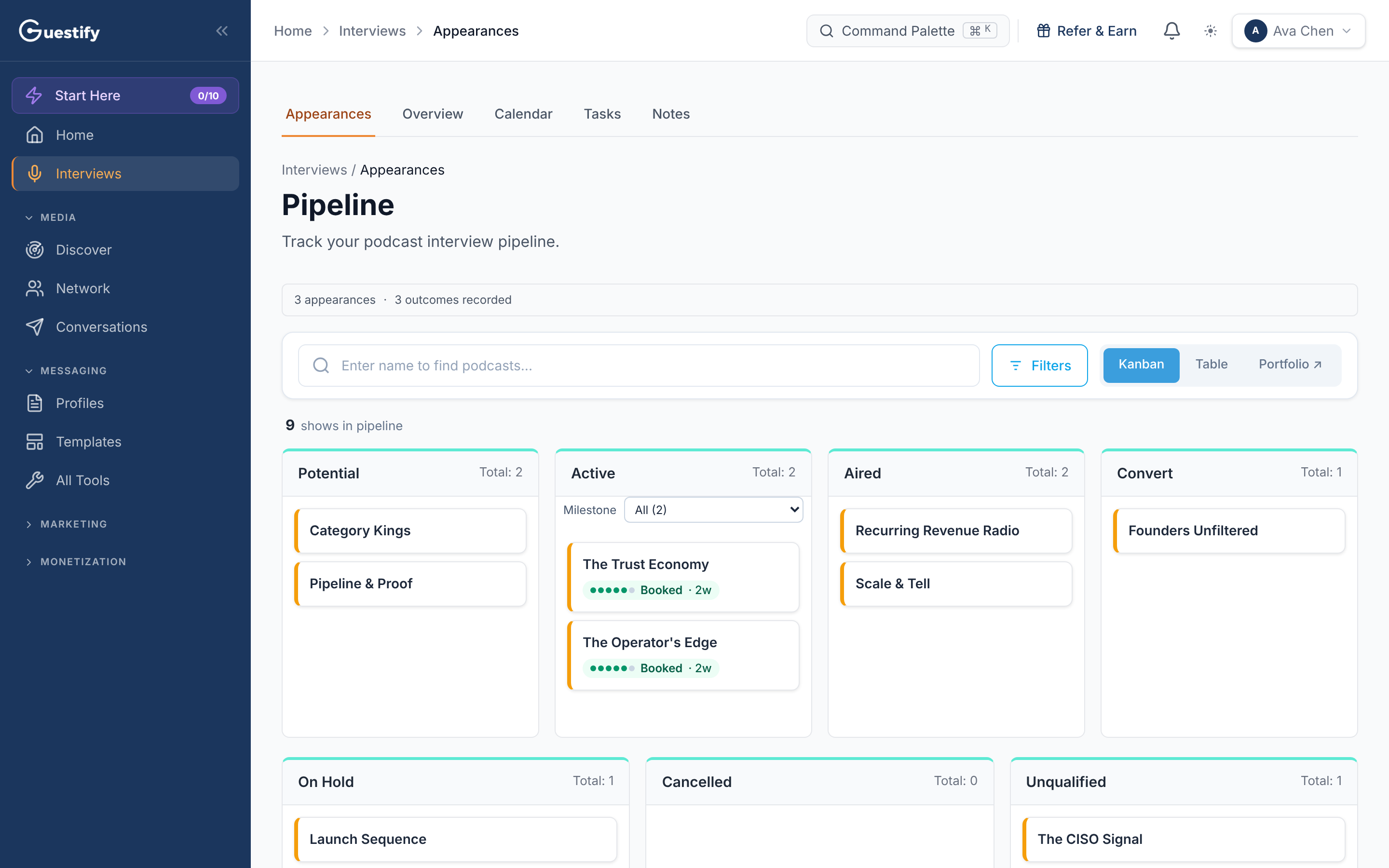
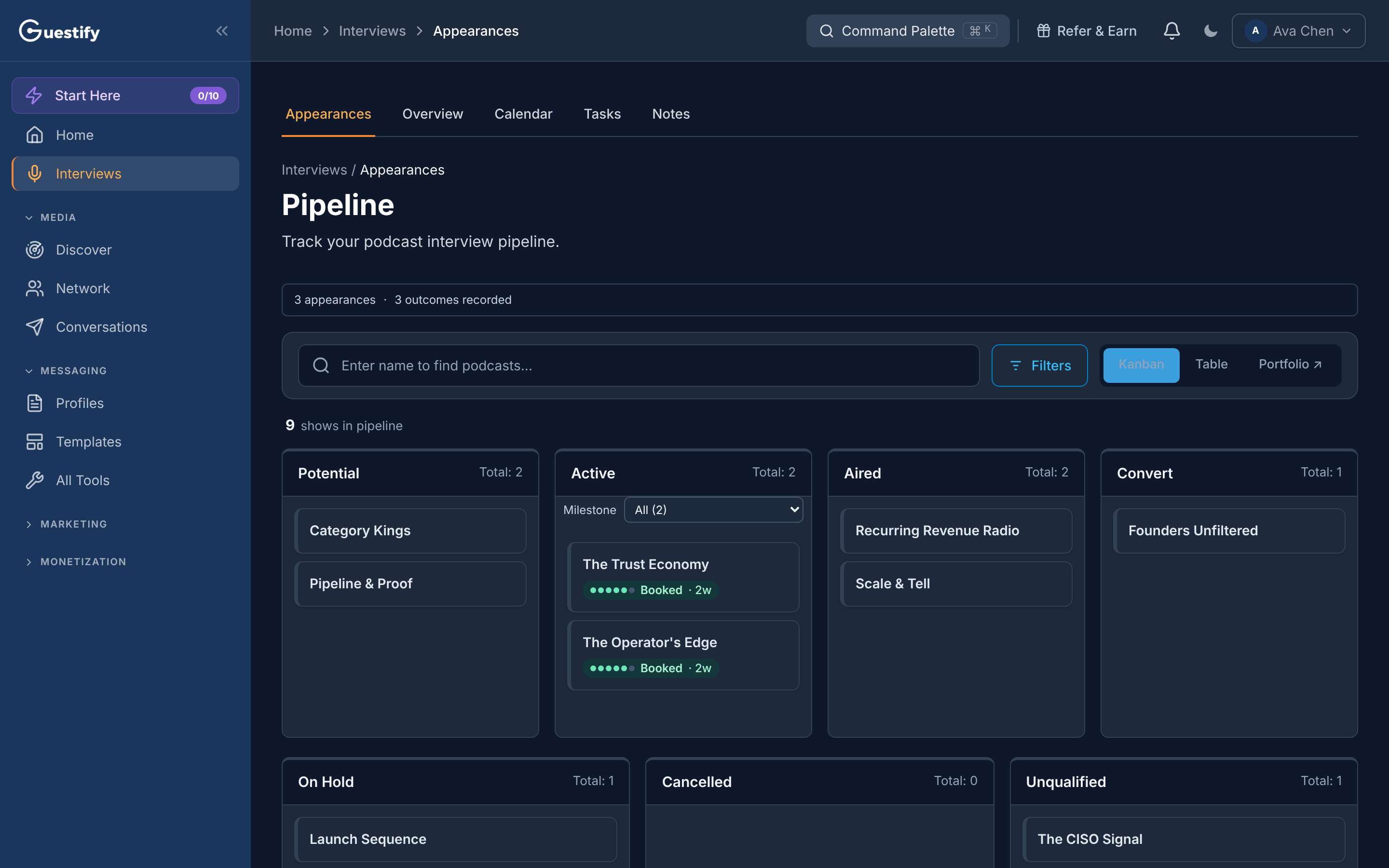
Interviews, then Appearances, shows your pipeline as a board, with a column for each status: Potential, Active, Aired and Convert, plus On Hold, Cancelled and Unqualified. Drag a card to change its status. Moving a show to Unqualified asks you for the reason. Prefer rows? Switch to the table view.
Click Interviews in the sidebar. It opens on Appearances, your pipeline as a board. The other tabs are Overview, Calendar, Tasks and Notes.
The statuses
Each show on the board has one status, shown as a column. The main row is Potential, Active, Aired and Convert; below it are On Hold, Cancelled and Unqualified.
Active means you're working on the show, not that it's booked. Booking is recorded separately (see below).
Change a show's status
Drag its card to another column.
- Moving a card to Unqualified asks Why is this podcast unqualified? Pick a reason, add a note if you like, and click Mark as unqualified.
- Moving a card to Active doesn't mark it booked. When the interview is booked, click Mark booked on the card and add the date (or skip it).
If your plan's limit on tracked opportunities is full, a move that would go over it is refused and the card returns to where it was.
Find a show
Use the search box to find a show by name, or Filters to filter by status, priority, archive and outreach state (for example Needs reply, Awaiting or Stalled). Switch between Kanban and Table for a board or a list.
Open a show's record
Click a card to open the appearance. Its tabs include Overview, Intelligence, Guests, Contacts, Messages and Activity. Messages is where you write to the host; see Run outreach.
Add shows
Shows come into your pipeline from Discover. In Prospector, add a result with Add to pipeline or Import as Potential; see Find the right shows. An empty board links to your tracked podcasts.
Agencies
In the All clients view, By Status and By Client switch between one board for everyone and a board per client. To share a shortlist with a client, open that client's workspace and use Share with client; see Work in a client's workspace.