Agency: manage clients
Add clients in Agency Hub, edit their details and sending setup, invite them to their portal, and archive or delete them.
Transcript: Agency Hub clients in 15 seconds
In the Agency Hub, Clients lists every client you manage, with their type, status and monthly searches. Filter by type or status, add a new client, or open one to manage their details, sending setup and access.
Agency Hub sits at the bottom of the sidebar for agency accounts. Owners and admins can open it; it opens on Clients.
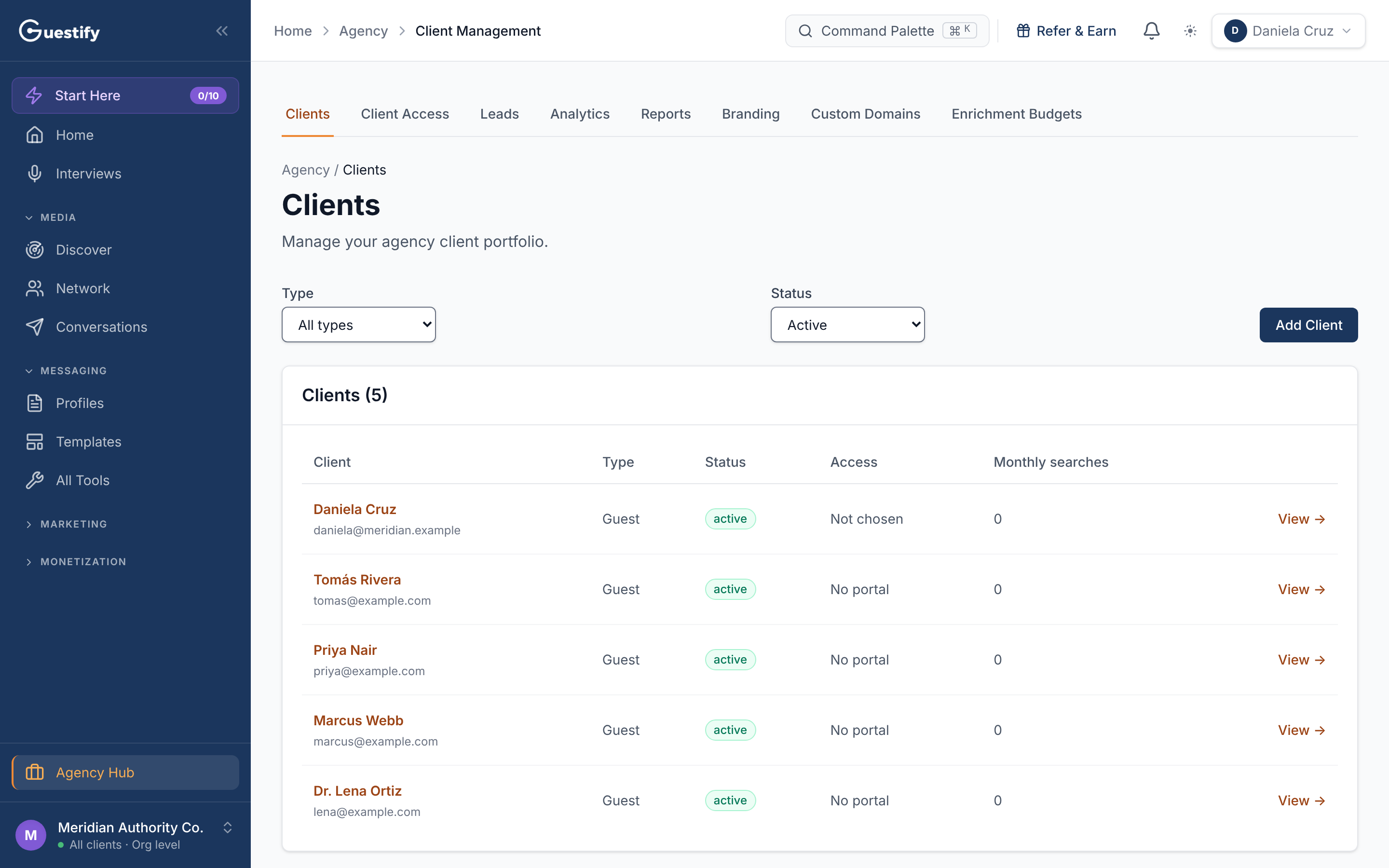
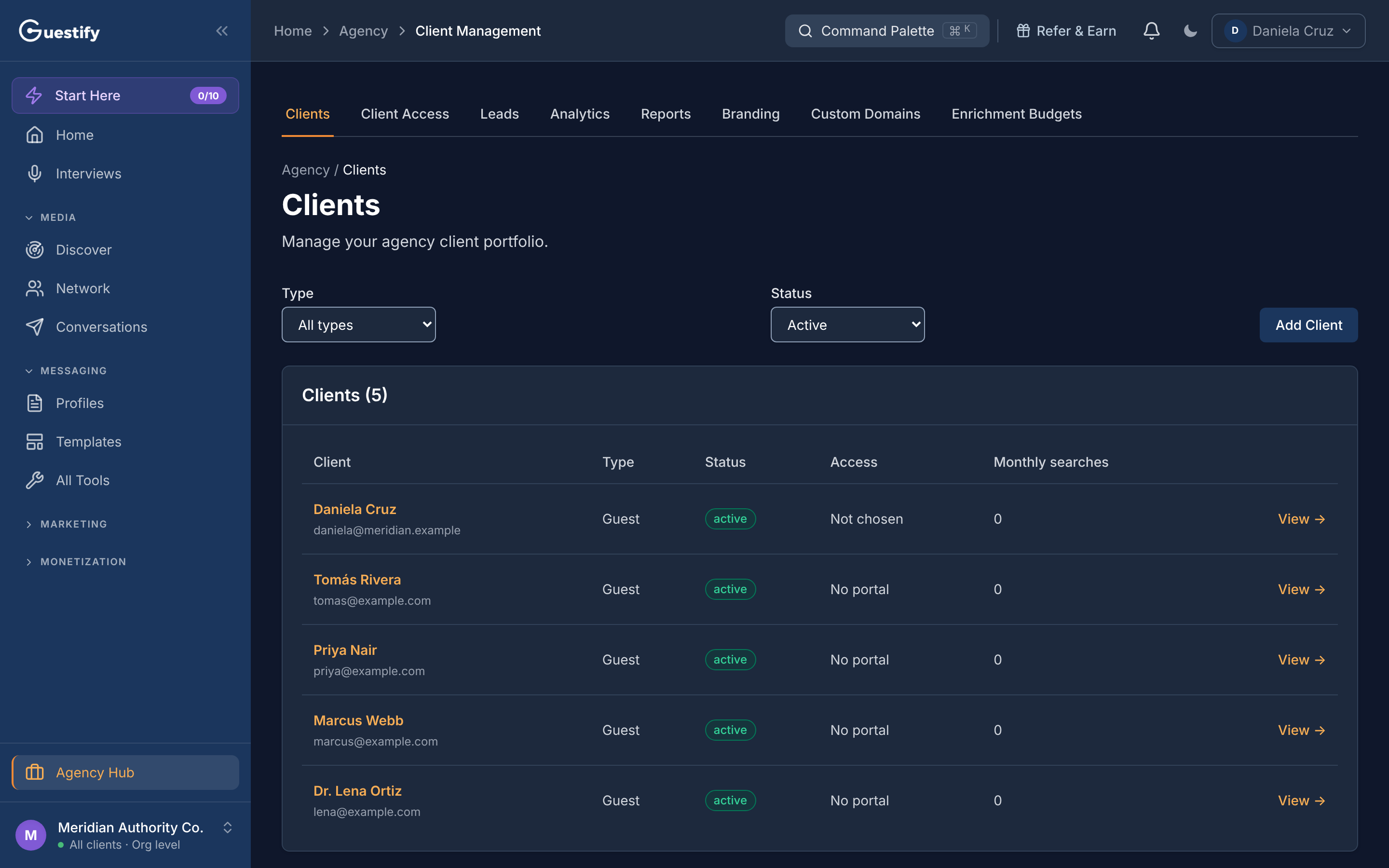
Your client list
Each row shows the Client (name and contact email), Type, Status, Access (their portal) and Monthly searches. Filter by Type (Guest, Podcast or Both) and Status (Active, Paused or Archived; Active is the default).
Add a client
Fill in the form
Enter the Client Name (required), choose a Type, and add their Email and LinkedIn URL if you have them.
Save
Click Add Client. The client gets their own workspace; see Work in a client's workspace.
How many clients you can have depends on your plan.
Manage a client
Click View → on a row to open the client. From there you can:
- Edit details: name, contact email and phone, LinkedIn URL and notes.
- Change the Client type.
- Under Workflows & sending: open the client's Share lists, choose Who can send as this client from the Guestify Chrome extension, and Link mailbox (a mailbox a team member has already connected under Settings) or connect one with Connect Gmail or Connect Outlook.
- Under Access & lifecycle: manage their portal, and Archive client, Activate client or Delete client. Deleting can't be undone.
Invite a client to their portal
The portal is a private place where your client sees their reports and can choose to share their LinkedIn network with you.
Click Invite to portal
On the client's page, under Access & lifecycle.
Enter their email
Enter the Client's email and click Send invitation. They don't need a Guestify account first, and no plan or payment is involved.
They accept
The link works only for that address and expires in 7 days. Once they accept, the status reads Portal access active.
You can Resend invitation, Cancel invitation or Revoke access at any time. Choose an Access role to decide what the client can see. Sharing their LinkedIn network stays the client's choice, made in the portal.
When a portal is closed
A client who isn't active can't use the portal or accept an invitation until you activate them again. A portal can also show Portal closed for other reasons; that client can't be invited.