Getting started
Create your account, find your way around Home, and take the next step it suggests.
Transcript: Home in 20 seconds
Home is where every session starts. Pick a focus at the top: Build Authority, Grow Revenue, or Launch and Promote. Your Interview Readiness score, out of one hundred, shows what's already done and the next step to take. Below it, you'll see how many shows you're tracking, how many have aired, and the appearances on your record.
Create your account
Sign up
Go to guestify.ai/auth/register, enter your Full Name, Email and a Password of at least 8 characters, and click Create Account.
Your workspace is created for you
Guestify creates your organization, with you as its Owner, and a personal workspace of your own. There is nothing to set up first.
Tell Guestify who you are
A short setup opens next. Discover asks about you (from your LinkedIn profile, or in your own words) to find shows where the right people already listen. Focus shows your first potential matches: pick three, then save, and Guestify opens the first one in your pipeline.
Find your way around Home
Home is the first item in the sidebar. From top to bottom it shows:
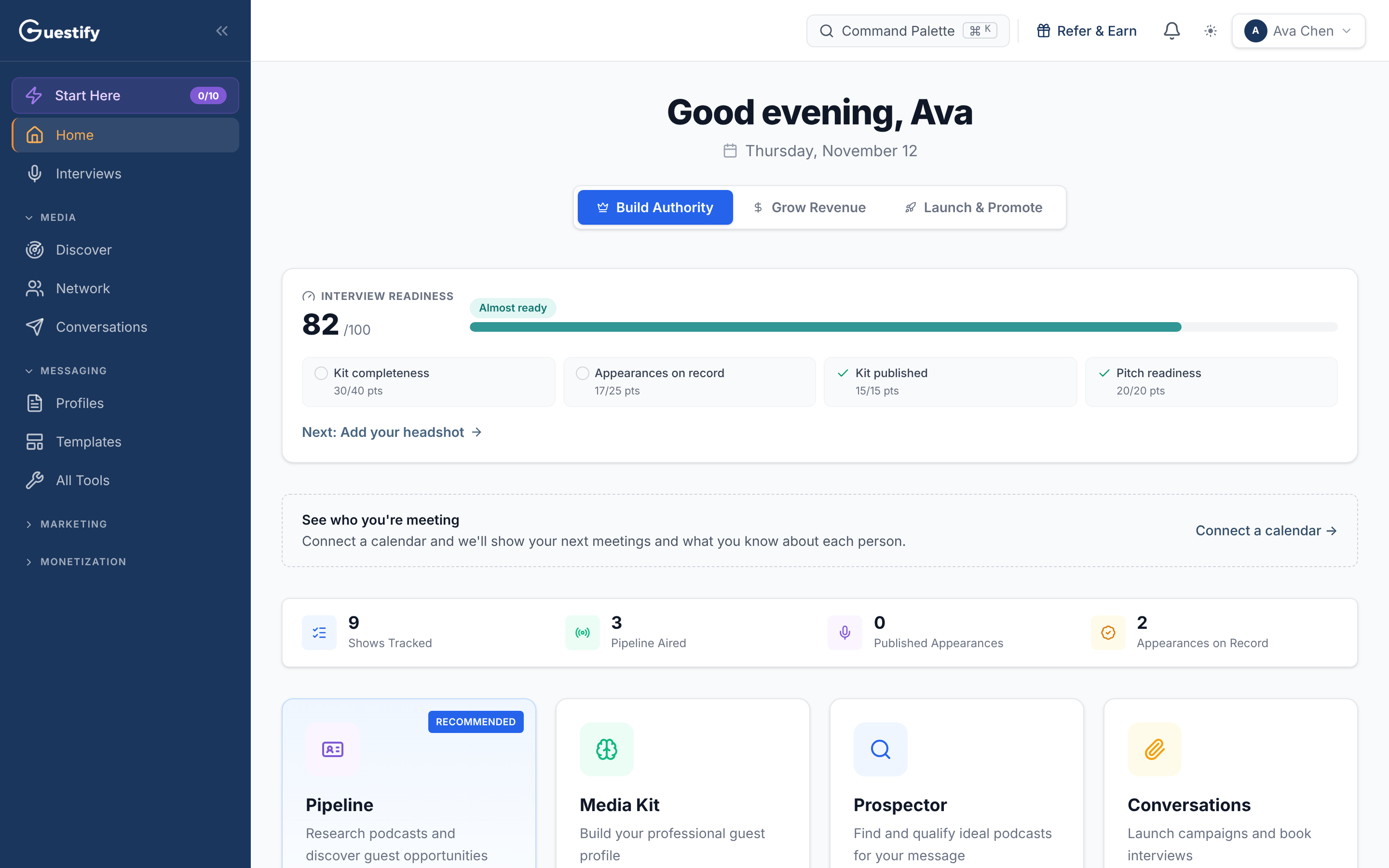
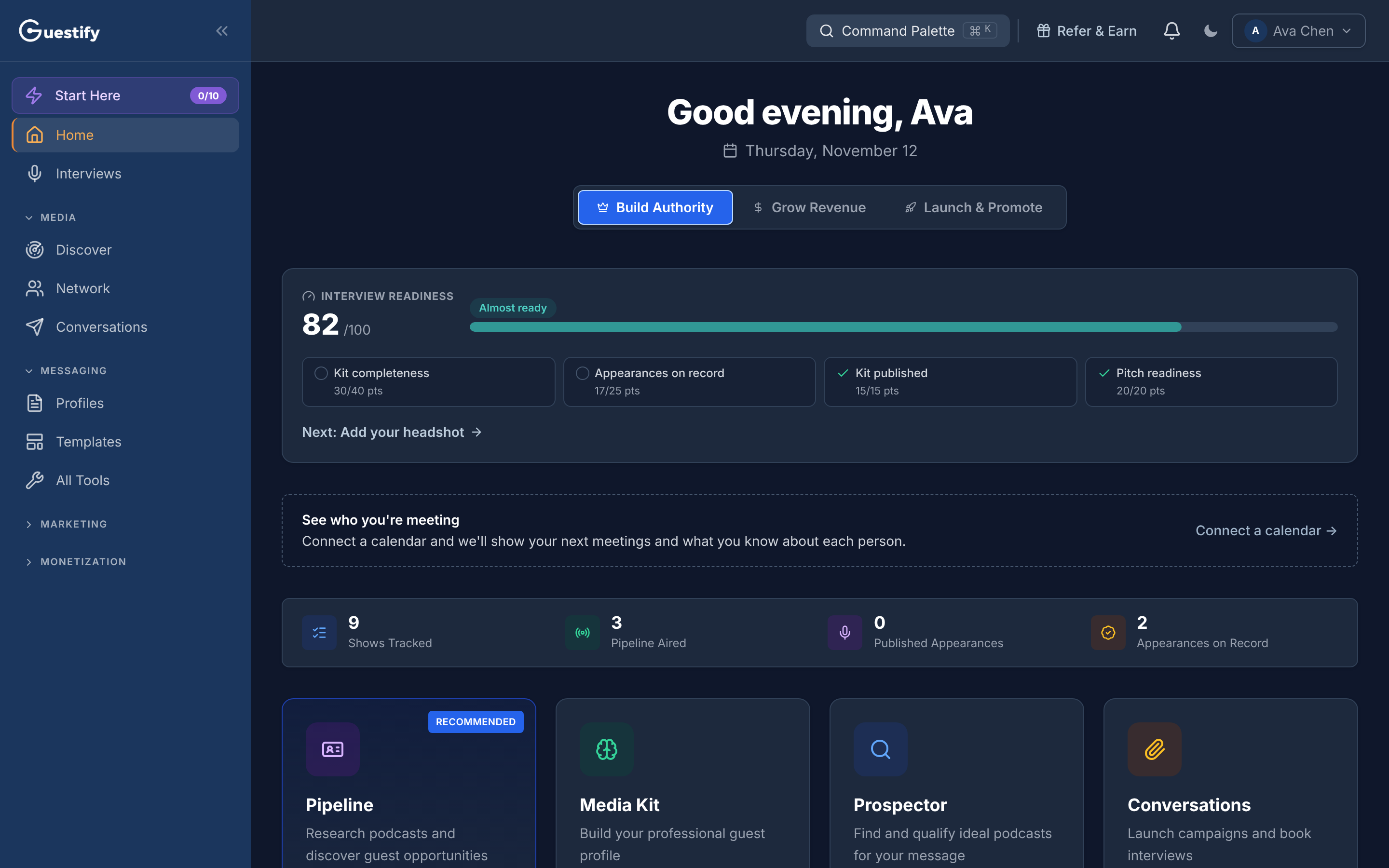
- Your focus. Choose Build Authority, Grow Revenue or Launch & Promote. The tool tiles below reorder to match, and their buttons change with it.
- Interview readiness, a score out of 100. Four parts make it up: Kit completeness, Appearances on record, Kit published and Pitch readiness. The Next: link under the score takes you to the next step you haven't done yet, such as writing your bio, publishing your media kit or tracking your first show.
- Your numbers: Shows Tracked, Pipeline Aired, Published Appearances and Appearances on Record.
- Tool tiles for Pipeline, Prospector, Media Kit and Conversations. The one marked Recommended is the best place to start for your focus.
- Jump Back In, the last few things anyone in your organization did, each linking back to where it happened.
- A Credits card with your balance; View Details opens Credits & Usage.
Agencies
In the All clients view, Home reads "Each client keeps its own focus. Open a client to set it." Switch to a client to choose its focus. See Work in a client's workspace.
Invite your team
Owners and admins invite teammates from Settings › Workspace › Team Members: click Invite Member, enter their Email Address, choose a Role, and click Send Invite. You can also copy the invite link to send it yourself. How many seats you have depends on your plan.