Build your media kit
Create a guest profile and its media kit in Profiles, edit it in the builder, and publish it as a public page.
Transcript: Profiles in 15 seconds
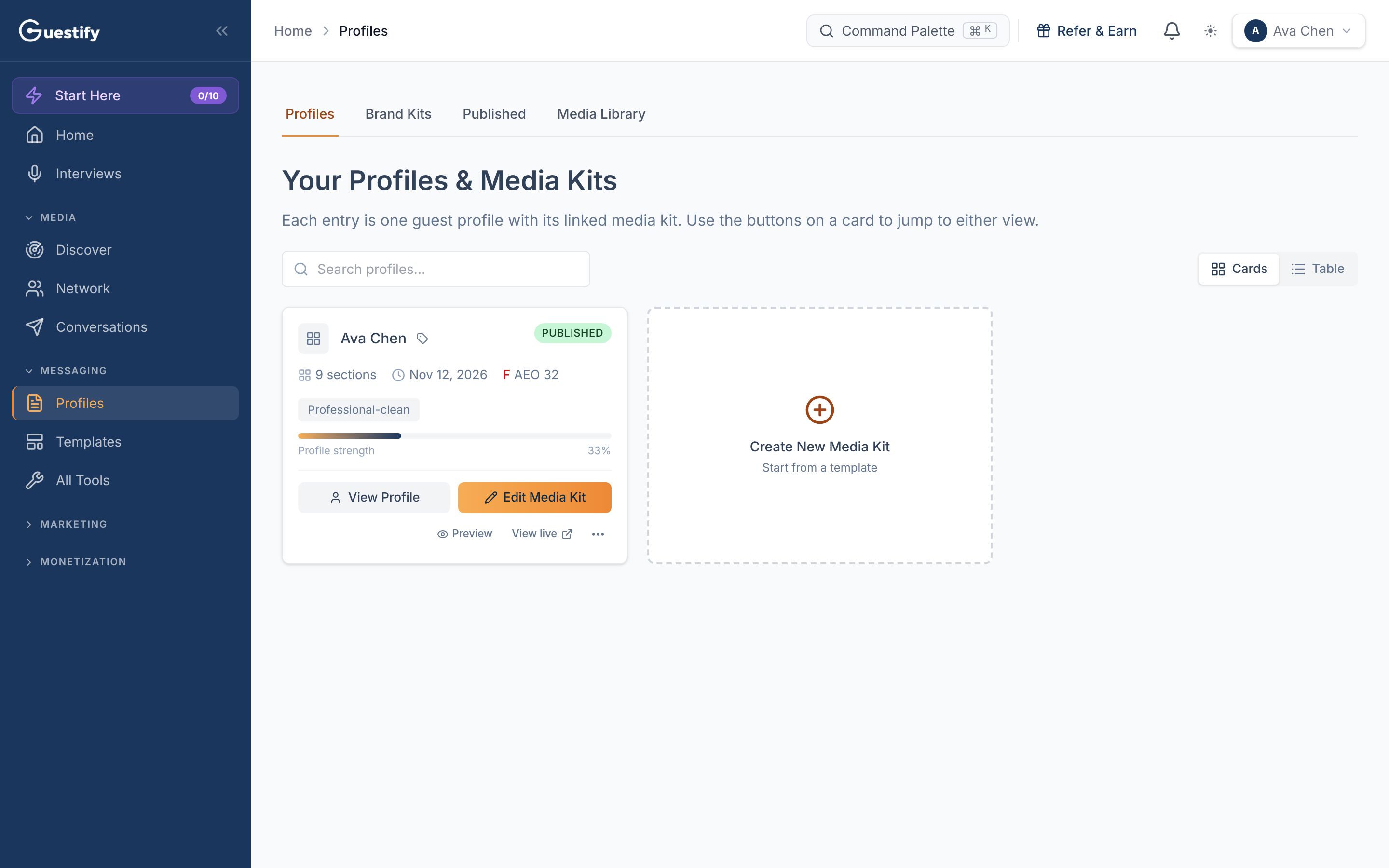
Profiles holds each guest profile together with its media kit. Every media kit belongs to a client, so you choose one before you create a kit. From a card you can view the profile, edit the kit, preview it, or open the live page.
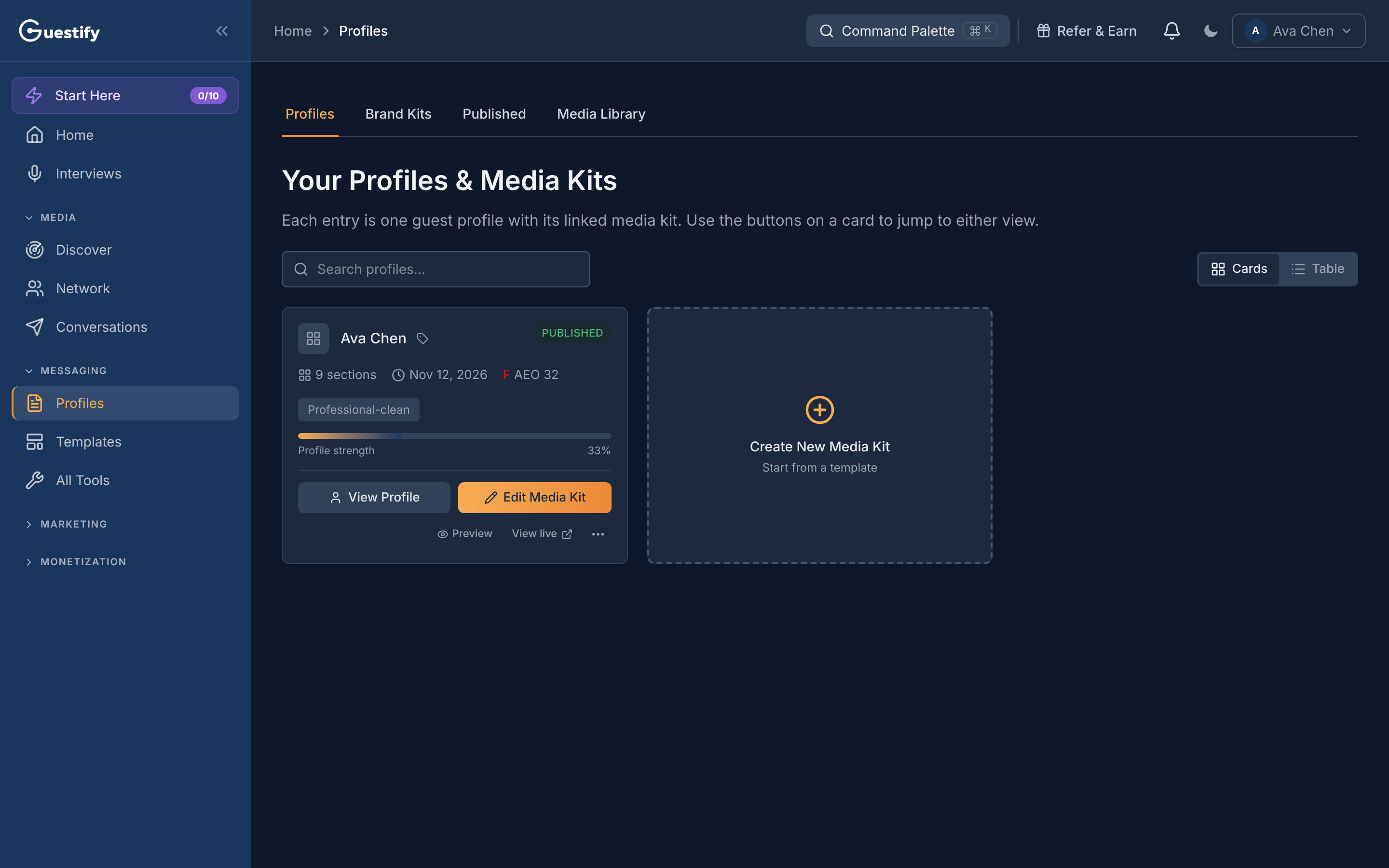
Click Profiles in the sidebar. Each entry is one guest profile with its linked media kit.
Create a media kit
Start from a template
On the Create New Media Kit card, click to open the template library. Pick a template and click Use template, or choose Start from scratch.
Name it and fill it
Enter a Display name (required) and a Kit name. Choose Pull data from existing profile to fill the kit from your profile, or start blank. Click Create Media Kit.
Edit it in the builder
The builder opens. Add, remove and reorder sections from the left sidebar, edit each section's Content and Design, and use Preview to see the page on desktop, tablet or mobile.
Publish it
Click Publish. Your kit goes live at guestify.ai/media-kit/<your-slug>, an
address made from your display name. Unpublish takes it down again.
A new kit starts with these sections, which you can change: Hero, Statistics, Portfolio Interviews, Speaking Topics, FAQ, Profile Photo + Biography, Testimonials, Call to Action and Contact.
How many media kits you can have, and which templates you can use, depends on your plan. Only owners and admins can publish; other roles see a message asking them to ask an owner or admin.
What you can do from a card
- View Profile: edit the guest profile behind the kit.
- Edit Media Kit: open the builder.
- Preview: see the current draft.
- View live: open the public page (published kits only).
- The ⋯ menu: Set as default, Rename, Duplicate (the copy starts unpublished), Delete, and Analytics for a published kit.
Each card also shows whether the kit is Published or a Draft, its Profile strength, and when it was last updated.
Agencies: every media kit belongs to a client
In the All clients view, the create card asks Who is this media kit for? Choose the client, then create the kit. In a client's own workspace, a new kit belongs to that client. See Work in a client's workspace.
Brand kits and the media library
The tabs above the list also hold Brand Kits (your colors, fonts and styling, reusable across kits) and Media Library (headshots, logos, photos and backgrounds you can use in any brand kit or media kit).