Run outreach
Start an email campaign from Conversations, connect the mailbox it sends from, and follow sends, opens and replies.
Transcript: Campaigns in 15 seconds
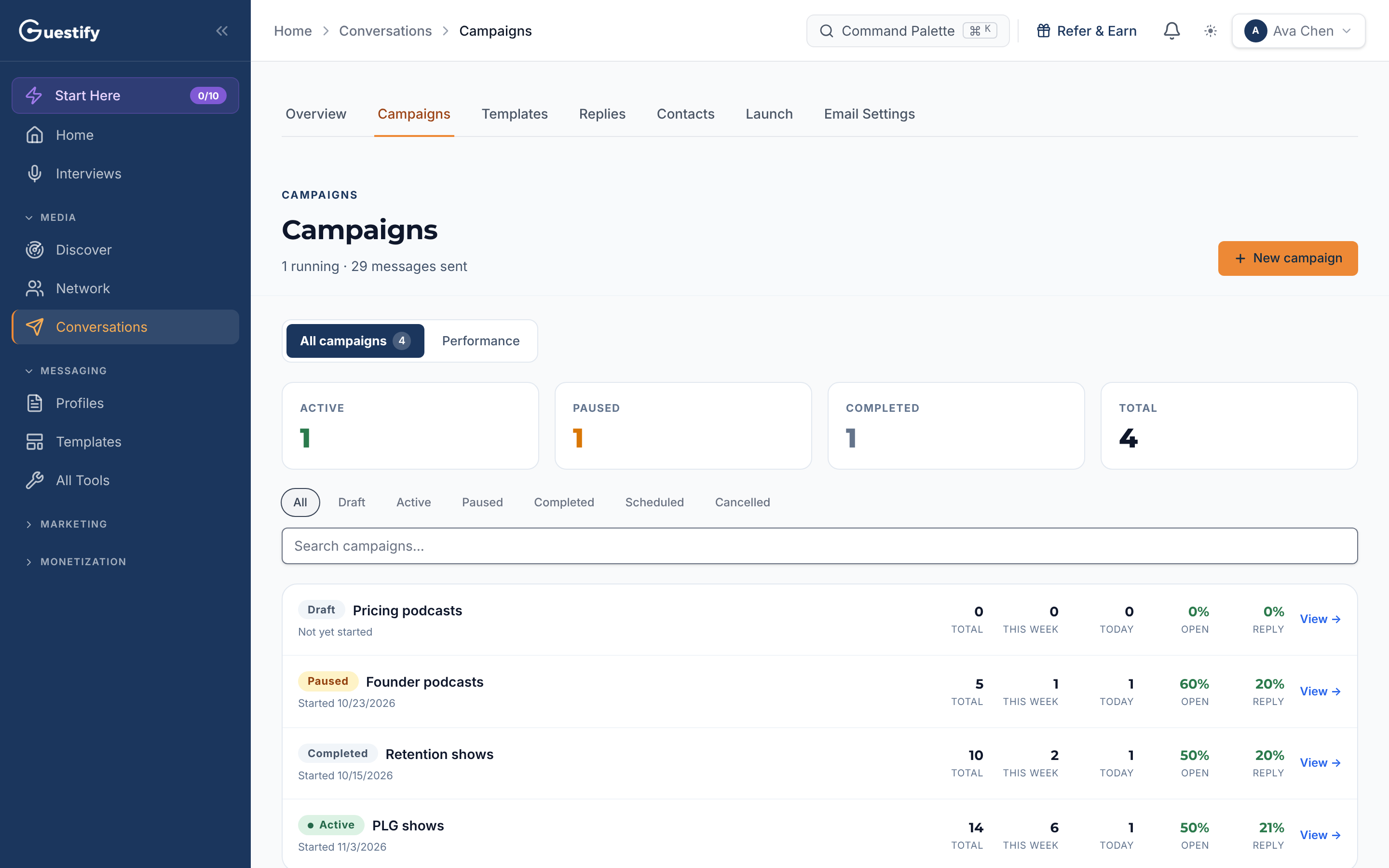
Conversations, then Campaigns, lists every outreach campaign, with counts of active, paused and completed. Each row shows how many messages went out, plus open and reply rates. Filter by status, or search for a campaign by name.
Outreach lives under Conversations in the sidebar. Its tabs are Overview, Campaigns, Templates, Replies, Contacts, Launch and Email Settings.
Before you send: connect a mailbox
Open Conversations › Email Settings and, under Connected emails, choose Sign in with Google, Sign in with Outlook, or SMTP.
Gmail through Google sign-in
A Gmail address connected with Sign in with Google sends only the emails you send yourself. To use it for campaigns, sequences and automatic follow-ups, connect it with an app password (SMTP) instead.
The same page sets your Messages per day and Messages per hour limits and a Send window (the days and hours sending is allowed). The daily limit can't go above what your plan allows.
Start a campaign
Click New campaign
On Conversations › Campaigns, click New campaign.
Pick a starting point
Choose Blank email to write a single message, or Start from a sequence to use a multi-step sequence from your templates.
Pick the appearance
Choose which appearance in your pipeline the campaign is for. You can search by podcast title.
Write and send from the appearance
Guestify opens that appearance's Messages tab, where you write the message and send it.
A campaign always starts from one appearance in your pipeline. How many campaigns you can have running at once depends on your plan.
Follow your campaigns
All campaigns lists every campaign with its status, and counts how many are Active, Paused and Completed. Each row shows the messages sent in total, this week and today, with open and reply rates. Filter by status (Draft, Active, Paused, Completed, Scheduled or Cancelled) or search by name.
Open a campaign to see its sent, opened, clicked, replied and bounced counts, send a test with Send Test, and Pause Campaign, Resume Campaign or Duplicate Campaign. A draft can be started with Start Campaign or deleted.
The Performance tab totals your campaigns, messages sent, completion rate and active rate.
Templates and replies
- Templates holds single emails, multi-step sequences and LinkedIn templates. Create one with New email template, New sequence (multi-step) or New LinkedIn template (extension).
- Replies collects replies to your outreach. Mark a reply's sentiment, flag it Needs follow-up with a date, or record a Booked interview with its date and link.
Agencies
New campaign is unavailable in the All clients view ("Switch to a specific client to take this action"). Switch to the client first. See Work in a client's workspace.